Instant quote guide
How to get a price and place an order with the instant quote tool.
Preparing your files
One model per file. Nothing larger than 50 MB.
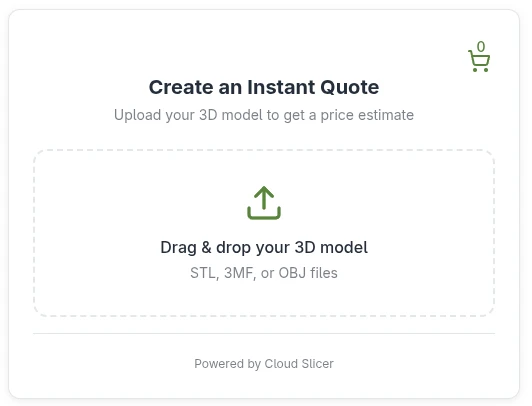
Drag and drop your 3D model (.stl, .3mf or .obj) into the box, or click the box to attach a file. Upload each model separately, for example Part1.stl and Part2.stl.
Combining several models in one file gives an inaccurate quote. Keep each file under 50 MB.
File names may not contain any of these characters:
/ \ { } ^ % ` [ ] " < > ~ # | & $ @ = ; : + ? , ' ( ) !If you have trouble with the instant quote, a complex model with a large file, or need a multi-colour print or a custom quote, contact us directly instead.
Not like this
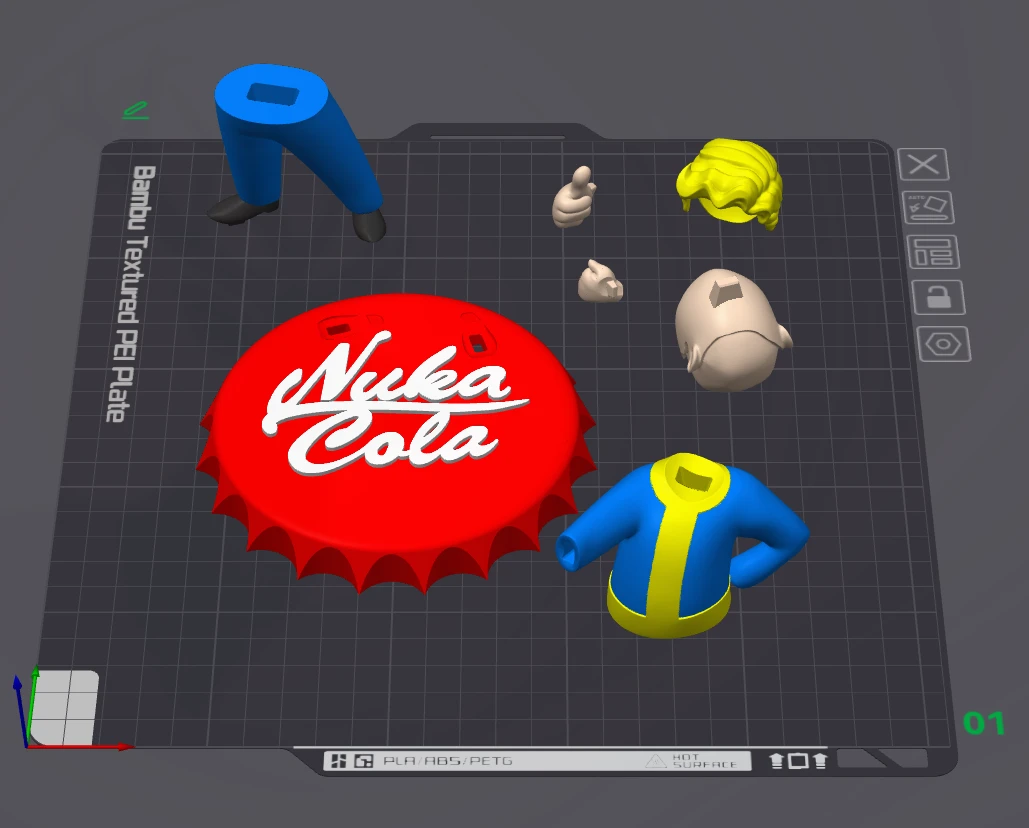
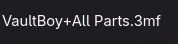
Separate models are combined into one file. Forbidden characters in the name stop the upload. The instant quote tool cannot do multi-colour prints.
Like this
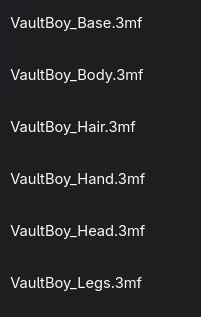
Each model is its own file, named plainly and without forbidden characters.
Step I
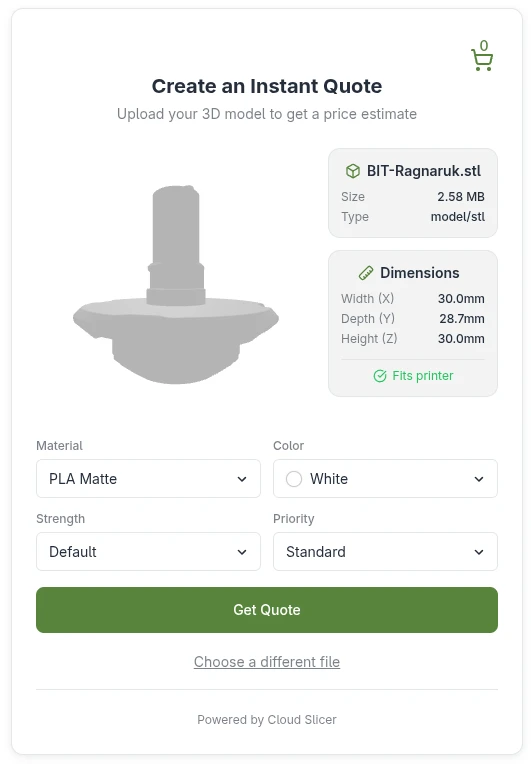
Choose settings for each model
Once your model is uploaded, choose the material, colour, strength settings, and priority. These settings apply to this model only. The next model you upload can have different settings.
Step II
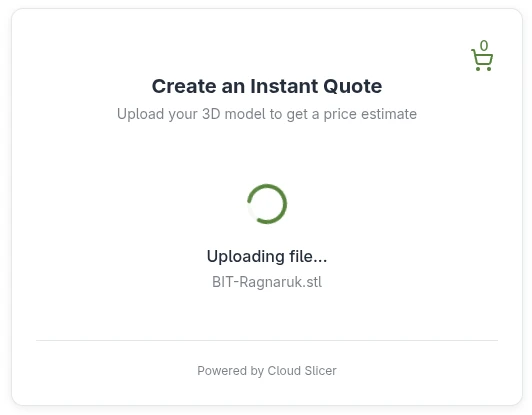
Wait for the quote
Generating a quote can take a few minutes, depending on the complexity of the model.
Step III
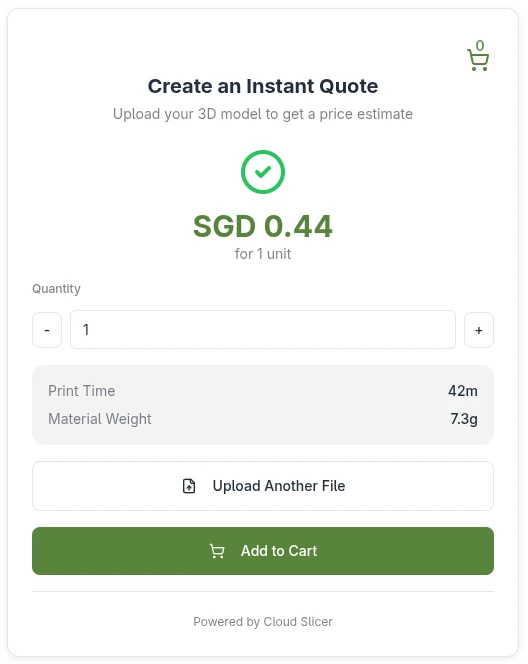
Set the quantity and add to cart
Once a quote is ready, set the quantity and add the part to the cart. After that you can choose “Keep shopping” to add more models.
Step IV
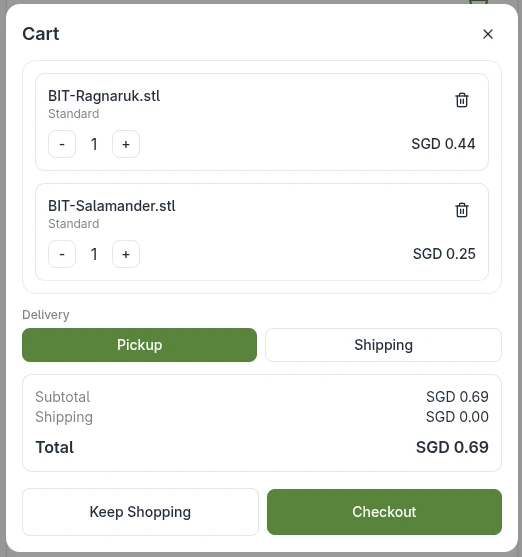
Choose pickup or shipping
Pickup is available around the clock once the item is finished, at 605 Yishun Street 61, 760605. Detailed collection instructions are sent when the parts are ready.
Shipping is a $5 flat rate via NinjaVan, with a tracking number. Delivery usually takes 1 to 3 days from the time of shipment.
To add more models, choose “Keep shopping”.
Step V
Fill in your details and deadline
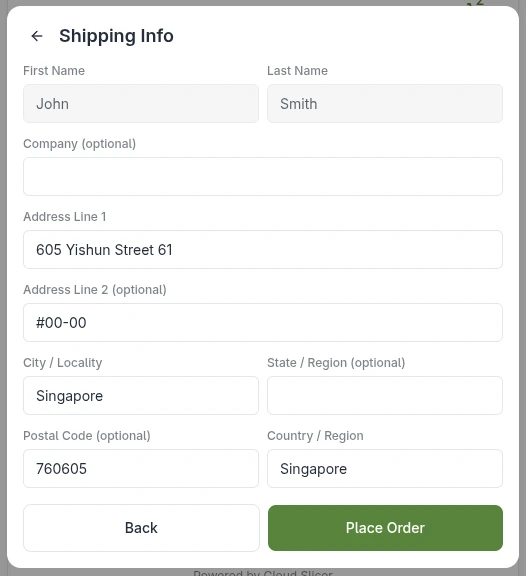
Fill in your details, including your WhatsApp number and any notes for the order, and choose a deadline for your project.
The deadline is the day we finish your order. If you chose mailing, it is the day we mail it, not the day it arrives. Allow at least 1 day for printing, excluding Sundays. Larger projects may need more time, and printing is slower over weekends. If you chose shipping, include your unit number and postal code.
Step VI
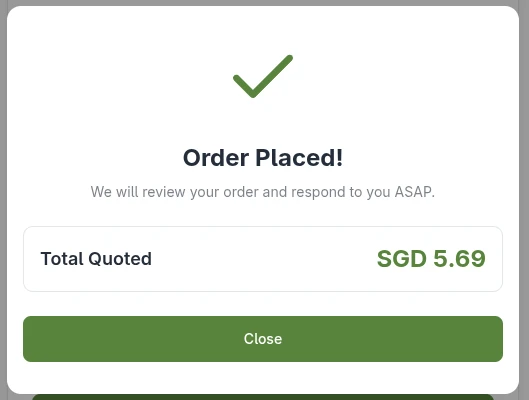
Your order is placed
Give us up to 1 working day to process the order. If we notice an issue with the quote or the model, we will contact you. We reserve the right to refuse any order.
Once we accept your order, we will send payment details (PayNow). Printing starts when payment is received. Thank you for choosing Fox & Train.